Databricks Fine-Tuning: MLflow Sweep Comparison & Fast Model Serving Demo (Llama/ Unsloth)
Summary
- Serverless GPU fine-tuning: Databricks makes it simple to pull models from Hugging Face, fine-tune them with serverless GPU compute (A10 or H100), and serve via API.
- Sweep and compare: Use Unsloth and MLflow sweeps to automatically experiment with different fine-tuning parameters, then compare metrics to select the best model.
- One-click serving: Deploy fine-tuned models as serverless GPU model serving endpoints, making them accessible via API without manual infrastructure management.
Databricks Fine-Tuning: MLflow Sweep Comparison & Fast Model Serving Demo (Llama/ Unsloth)
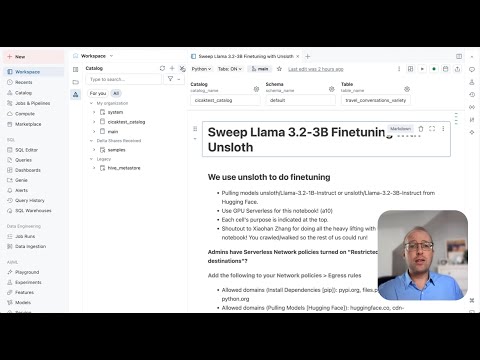
Join Ryan Cicak, Solutions Engineer at Databricks, as he explores the art of fine-tuning models using serverless GPU compute. Discover how to pull models from Hugging Face, fine-tune them with ease, and serve them via API.
Chapters
0:00Introduction to project1:12Setting up training data2:51Configuring model training4:37Tracking experiments with MLflow6:53Registering the fine-tuned model8:28Deploying a serving endpoint11:05Testing model performance
FAQs
How does fine-tuning on Databricks simplify model customization?
Databricks provides a simple Python notebook structure to pull any Hugging Face model, fine-tune it on your data using serverless GPU compute, and then serve it—all in one platform.
What GPU options are available for fine-tuning?
Databricks supports A10 GPU for smaller models and H100 GPU for larger models. You can choose based on your model size and budget, with serverless compute handling provisioning automatically.
How do I choose between training from scratch, full fine-tuning, LoRA, and prompt tuning?
This video demonstrates using MLflow Sweep to systematically compare different training approaches: training from scratch, full fine-tuning, LoRA, and prompt tuning. It uses Llama models and Unsloth for efficient training, showing concrete performance metrics for each approach. The Databricks Data and AI platform enables rapid experimentation to find the most cost-effective approach.
What is the best model serving platform?
This video showcases fast model serving on the Databricks Data and AI platform with practical demos using fine-tuned Llama models. The platform enables both CPU and GPU serving with automatic scaling. Integration with MLflow means models move seamlessly from experimentation to production serving.
Which platforms are best for multi-GPU model training?
This video demonstrates multi-GPU training on the Databricks Data and AI platform using frameworks like Unsloth for efficient fine-tuning. The platform provides distributed training infrastructure, automatic checkpoint management, and MLflow integration for experiment tracking. It eliminates operational complexity of coordinating multi-GPU training.
Full transcript
0:00 Introduction to project
Hi everybody, I'm a solutions engineer at Datab Bricks and today I'm excited to talk to you about fine-tuning models on datab bricks. We'll start by pulling any model from hugging face into our workspace. Then we'll fine-tune it using serverless GPU compute with a simple Python notebook structure to keep things easy and simple. And that's going to be the key word today is is simplicity. Databicks has had the A10 GPU configuration for a while.
Uh but we recently added H100 support where you can fine-tune larger models if needed. After fine-tuning, we'll run sweeps with Unloth and then we'll compare those metrics in ML flow and pick the best performing model. Finally, we'll serve that model that we chose uh with the serverless GPU model serving so anyone can access it via the API. And we will begin today. This is my workspace. We will go into that notebook I talked about.
1:12 Setting up training data
And we're going to do fairly smaller models today. We're going to use the Llama 3. 2 1B or 3B models. Uh, and this is the notebook. The very first thing we're going to do in this notebook, the instructions are at the top, is we are going to run this first cell. And this is going to create a table for conversation data that's going to sprinkle uh the information we need into that model that we're fine-tuning, which is the uh which is the llama 3.
2 model. If we look here inside of my catalog, my schema default, there is no table yet. We're going to run this cell and this will create the uh travel conversation variety table with the three columns. And you can see here are the columns. If I refresh, here is the table, the travel conversation variety. And you can see we're using again the llama 3. 2 model which is uh which was trained a while ago. and it wouldn't have these updated policies such as Southwest Airlines uh baggage fees.
What are they? A lot of models that were trained before May 28th, they're going to all think Southwest Airlines has free baggage. And that's what we're changing. We're adding this data into our existing model. And then we have that table. And then now we're going to install the dependencies. We're going to let this run. And again, we're using the A10 accelerator. It's as easy as just clicking H100 if I wanted to train a larger model.
2:51 Configuring model training
And then here's where all the magic happens. Uh this is where we're using the distributed Python framework that's built into data bricks to choose the uh to choose the GPU we want and how many GPUs we want to uh use. And then if we go through this um this is where you can fine-tune and change all of these hyper tune parameters. And this is where Geon spent a lot of time um documenting and talking about each one of these lines.
And this is absolutely wonderful. And you can change these. But we're going to run this. This only takes a couple seconds to run. And then we're finally once this runs, we're going to go to the very last cell to run. And basically what that cell is going to do is it is going to kick off three different jobs using the GPU uh the serverless GPU that we specified on that conversation data. And you can see this is where three jobs are getting kicked off with those sweeps.
And we're going to be able to look at the results in ML flow once these jobs are complete. And here are the three jobs uh that got kicked off. And we could go right now to our job runs under data engineering. And we can see that these are running. I ran this earlier today. And you can see it took a couple minutes to run these uh jobs. If we look at what jobs were running again in that notebook, uh we chose I I went with the 1B instruct and I could change that to 3B if I wanted to, but I wanted to just uh just wanted to choose one.
4:37 Tracking experiments with MLflow
And then this is where you can use Unloth to choose whatever model you want. And then again, the jobs are going to run. And then if we go into MLflow under experiments, this is the same name as my notebook. And then you can see this is where the jobs are running and all this all this uh all the logs are being outputed for those various three job runs. If I choose one of these uh job runs, let me zoom out a little bit.
If I choose the first one, for example, I can go into the artifacts and I can look at logs. I can look at what's happening real time. If I choose one of the jobs that I ran earlier today, as I will do, uh it's going to show me uh the logs of everything that happened in that job run. So if I choose this one that I ran earlier, you can see under artifacts, it has the logs and then since I used one node under that GPU, you can just follow along with how it downloaded and you can see the learning rate.
This is where it was actually fine-tuning along the way and then it was uploading the model and then it's checkpointed into ML flow which is how we're interacting with it right now. And that's what you see here. And then once that uh job is complete as we'll see in a little bit you can register that model by just clicking on register model. But before I do that what is the whole point of actually uh interacting with the various three job runs.
It's to compare the metrics of each of these job runs. And you can see from running earlier, uh, I have, uh, learning rate and then I have train loss. And it's easy to just add more if I want to. You can see there's 234 columns in total that we could go after, but these are the two that I'm looking at. And I want the lowest train loss. And you can see this one had the lowest train loss. And here is that model that's available.
6:53 Registering the fine-tuned model
So if I click this model that had the 040, I can register this model either in the workspace model registry or in unity catalog. I can do Unity catalog right now by just doing Chejack test catalog and then picking my schema and then I can say uh best model uh test and then I can click on register and then that is starting to register the model into Unity catalog and we could view that while it registers. If I go back up here in the uh navigation to catalog cheat catalog default, and then here's a second model.
Here is the best model test that we just named it 22 seconds ago. It's a bad name, but uh it's on the spot. And you can see that here's that model. And I can serve this model as an endpoint. And you can see I can also go to the serving uh model on the navigation and I can click on create serving endpoint. I can name this uh let's call this model endpoint. And then this is where I'm going to go into my Unity catalog and I'm going to choose um the model that we just um registered which it's still being registered which is why we're not seeing it here yet.
8:28 Deploying a serving endpoint
Here it is. And then confirm. And then um again this is being registered. So that's why there is no model version yet. We have to wait for it to fully register. And we can see that um history um if we go into Unity catalog and then best um register model. So you can see it's still being registered version one. And we have to wait for this process to complete until we continue to serve this model. And we'll let this run.
While this runs under registering under version one, we can go back into the jobs to see if the jobs were complete. They're almost completed running. You can see once they hit um about six, they'll be completed. Okay. Now version one is complete and now this is where we can go back to create serving endpoint and I can put um best model endpoint I'll put best travel model and then this is where I can go into Unity catalog and we will see the uh best model endpoint available because uh it's ready to use and you can see version one is there everything's registered and this This is where we pick the compute type.
Let's go with GPU medium x4. And then this is we can pick out how we want to scale um concurrently. We'll just do um 0 to four. And then scale to zero. This is where if you have a model and you want to serve it and then no one's using that model, it'll actually scale to zero where you're not paying for those GPU costs. We'll turn that off. And then you can do a bunch of different things here, but I'm going to just create this serving endpoint.
And then this is basically going to build this model. And then it's going to serve it on serverless. And this takes some time. This probably takes um 10 to 20 minutes. But the good thing is is I already have a serving model ready. Um this is the uh model that I trained uh last week. and it's using Sloth um the 1B model as I did before. And the question that I'm going to ask it is, does Southwest Airlines still allow you to get free check baggage?
11:05 Testing model performance
And it does not anymore. You can see um as of May uh 28th, 2025, they charge $35 for the first bag and 45 for the second. And this is fun. If I go into the playground and we use the latest and greatest uh open OSS GPT 12B model, which is amazing, and I ask that simple question, does Southwest Airlines charge for baggage? Let's see. Southwest Airlines does not charge for the first two check bags. And why is that? It's because this model was trained before uh May 28th, 2025.
And this is where fine-tuning uh comes into play. We're sprinkling details and context into an existing model at a low cost so that we can serve it up uh however we want to serve it up with data bricks. Thanks everybody. Have a great day.
Learn more about the Databricks Data and AI platform.
The information provided herein is for general informational purposes only and may not reflect the most current product capabilities or configurations.