Ask Genie Anywhere | Bring AI/BI Genie to Microsoft Teams & M365 Copilot via Copilot Studio
Summary
- Copilot Studio Integration: Bring Genie directly into Microsoft Teams and M365 Copilot using native integration, delivering instant insights without leaving your collaboration workflow.
- Authentication Options: Connect via OAuth for user-level permissions or service principal for shared system-level access, matching your organization's identity and security requirements.
- Seamless Deployment: Publish a Genie space to Teams through Copilot Studio in minutes, enabling business users to answer data questions in real-time conversations.
Ask Genie Anywhere | Bring AI/BI Genie to Microsoft Teams & M365 Copilot via Copilot Studio
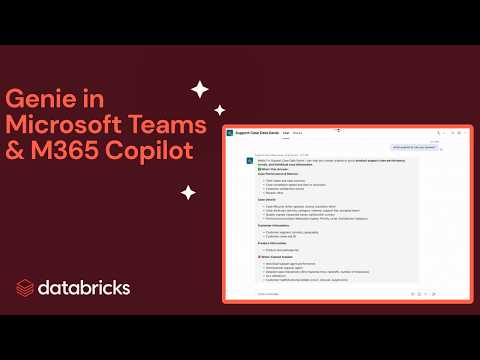
Bring Genie to where your teams already work.
See how AI/BI Genie’s integration with Copilot Studio can deliver instant, natural-language insights to your users directly inside Microsoft Teams and M365 Copilot—so users get answers the moment questions arise, without leaving their flow of work.
Documention - https://learn.microsoft.com/en-us/azure/databricks/integrations/msft-power-platform-usage#:~:text=API%20documentation.-,Connect%20to%20Genie%20spaces%20in,-Copilot%20Studio
Blog - https://www.databricks.com/blog/access-genie-everywhere
Chapters
0:00Introduction1:08Connect Databricks to Power Platform2:52Connect Genie to Copilot Studio7:29Genie in Teams
FAQs
How do you connect Databricks to Microsoft Power Platform for Genie integration?
Open Power Apps, create a new connection, select Azure Databricks or Databricks depending on your cloud provider, and authenticate using OAuth (for user sign-in) or service principal (for shared system identity).
What authentication options are available for Genie in Copilot Studio?
OAuth lets users sign in as themselves with their own identity and permissions, while service principal uses a shared system-level identity for more controlled or automated access.
Can you use the same Genie space across Microsoft Teams and M365 Copilot?
Yes. Once you connect a Genie space to Copilot Studio, you can publish it to Teams, SharePoint, or other Microsoft collaboration environments, delivering the same Genie experience across platforms.
What data permissions apply to Genie in Copilot Studio?
Genie in Copilot Studio respects the same Unity Catalog permissions as the full Databricks Genie experience, ensuring users only access data they're authorized to view.
Full transcript
0:00 Introduction
What if you could answer your data questions directly in the collaboration tools that you use every day? Hi everyone. I'm a product manager for AI BI Genie at Databricks. Genie is a data analyst agent that lets you simply talk to your data and get insights, all powered by the unique knowledge of your data intelligence platform. One request we kept hearing from our customers was we want to bring Genie into our Microsoft collaboration environments like Teams, SharePoint, or M365.
To help with this, we're excited to launch Genie's native integration with Copilot Studio. This lets your organization seamlessly bring a Genie space into your collaboration tools so your users can answer their data questions the moment they come up in conversations without leaving the flow of work. I'll now hand it over to who will take us through a demo of bringing a Genie space into Copilot Studio and publishing it to your Microsoft Teams.
Thanks. I'm a product manager on the partner ecosystem team. Where I focus on making Databricks' capabilities available in our partner solutions. But enough about me. Let's jump into the demo. Imagine you've created a Genie space powered by Unity Catalog designed to deliver precise answers about your product sales. And now you want to bring that capability directly into Teams for your business users. The first step is connecting your Databricks workspace to Power Platform.
1:08 Connect Databricks to Power Platform
To do this, open Power Apps, click connections, select new connection, and choose either Azure Databricks or Databricks depending upon whether you are using Databricks on Azure or on AWS and GCP. For this demo, I will use Azure Databricks. When creating the connection, you can choose how to authenticate into your Databricks workspace. You have the choice of OAuth or service principal. Choose OAuth when you want users to sign in as themselves with their own identity and permissions.
Use a service principal when you want the app to run under a shared system-level identity for more controlled or automated access. I will use OAuth. To get the connection details, the server host name, and HTTP path, open your Databricks workspace, navigate to SQL warehouses, select the desired SQL warehouse, and open the connection details. Once you've copied this information over, you can create the connection. Now that your Databricks workspace is connected to Power Platform, the next step is to bring Genie to a Copilot Studio agent.
2:52 Connect Genie to Copilot Studio
In Copilot Studio, you can choose to either create a new agent or select an existing agent. After selecting an agent, it is time to connect my desired Genie space. To do this, open the tools page, click add a tool, and under the MCP section, choose between either Azure Databricks Genie or Databricks Genie. This is the configuration step and it is very simple for you. Our integration handles all of the MCP and API logic, so all you have to do is remember the name of your Genie space.
Additionally, as part of this configuration step, you can choose how you want end users to authenticate into the Genie space. You have the option between end user credentials or maker provided credentials. Select end user credentials if you want each person to run questions using their own data permissions. Choose maker provided credentials when you want all questions to run under a single service identity that you can control and monitor. and we can confirm that the connection was successful by refreshing the tools description.
Perfect. After connecting Genie to your Copilot Studio agent, there are a few optional steps that you can take to make the integration as performant and reliable as possible. First, open your agent settings page, and confirm that it is using generative AI for orchestration. This will help your Copilot Studio agent intelligently decide when to call Genie as a tool. Second, if you selected end user credentials, we recommend enable connection parameter sharing.
This will ensure that each end user is using the correct host name and HTTP path when authenticating. To do this, under the connection, click see details, connection parameters, and allow permission to share parameters. Third, open your agent's overview page, and select Claude Sonnet 4. 5 as the model for your Copilot Studio agent. We have found that this model performs best when calling Genie as a tool. Finally, we recommend adding clear and concise instructions for your Copilot Studio agent that describe when and how it should query your Genie space, helping ensure that your users consistently get accurate answers.
The final step is to make the Genie-enabled Copilot Studio agent available where your users are. Genie-enabled agents can be published to any Microsoft channel including Teams, M365 Copilot, or SharePoint. To do this, you first need to publish your agent. Now that the agent is published, open the channels tab, and select Teams and M365 Copilot as the channel. Perfect. At this point, we've successfully connected your Databricks workspace to Power Platform, added Genie as a tool to your Copilot Studio agent, published your Copilot Studio agent, and added the Genie-enabled agent to Teams and M365 Copilot.
Now your stakeholders can start getting trusted insights from Genie directly within Teams or M365 Copilot. Let's see this in action. Click see agent in Teams, open Teams, and you will be prompted to add the agent. I have previously added my agent to my Teams workspace, so I'm being asked to open it. Now we can start conversing with the Genie-enabled agent. What's happening is that Copilot Studio is taking the question that I've asked, sending it to Genie, Genie is performing an analysis, and then will return the response to Copilot Studio.
7:29 Genie in Teams
At that time, Copilot Studio is doing some formatting before returning the response to me. And with this quick demo, you can already start to see the power of this integration. We've brought the trusted insights of Genie directly into Teams, the interface where your business users do business. The last thing that I want to call out is that all conversations remain fully auditable through the Genie interface, ensuring transparency and trust.
So as you just saw, it is very easy and seamless to connect Genie to a Copilot Studio agent, and ultimately publish that agent to your desired channel, whether Teams, M365 Copilot, or SharePoint. This integration brings Genie's trusted insights into the interfaces where your users already work, helping everyone make smarter and faster decisions. If you want to learn more and find step-by-step guidance on how to set this up, check out the blog link in the captions.
Thank you all for listening, and have a good day. >>
Learn more about the Databricks Data and AI platform.
The information provided herein is for general informational purposes only and may not reflect the most current product capabilities or configurations.